Quick & Dirty PHP Devel Setup on Windows

Here’s a quick tip if you’re developing a really simple PHP site and need a development setup on Windows with minimal fuss. Don’t bother with a full LAMP stack like XAMPP, which requires you to run a batch file that will rewrite its Apache and PHP configuration files.

PHP version 5.4.0 and above comes with a handy built-in webserver. Simply download the binaries for Windows and unzip it into a directory of your choice. Start the server with the following command and you’re good to go!

php -S localhost:8000 -t <directory>

This will start a web server that listens on port 8000 on localhost with the specified directory as your document root. If you need more control, you can also specify a “router” PHP script that will handle each HTTP request.

When you no longer need to use the “development environment”, just delete the directory which you unzipped PHP into.

Simple.

Decoding BCARD Conference Badges

Last month, I had the opportunity to fly halfway around the world to attend RSA Conference 2013. Everyone was given a lanyard and badge which contains your information entered during registration. When you visit booths, they can then scan your badge to collect your information and follow up by sending you spam.

RSA conference pass

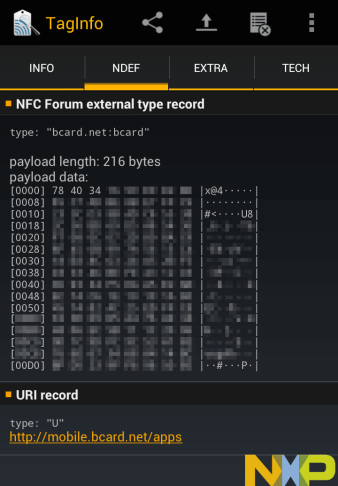
The scanner varies across different booths, but mostly it’s an Android device that ran a custom software. Since it had a large NXP logo, let’s try to read it with the NFC TagInfo app. Looks like the tag identifies itself as a NDEF message but the data is gibberish.

Data in the BCARD as decoded by TagInfo

Continue reading

Debugging Fun with JNI

Our proprietary system, written in a mix of Java and C++, was crashing quite often. It only started happening after some new features were added, so naturally that became the prime suspect, but my colleague claimed it was because the process ran out of memory.

I wrote a small test case to see if an out-of-memory situation would cause this, and true enough, it did. The JVM generated a crash log file that looked like this (I’ve omitted the unimportant parts):

#
# A fatal error has been detected by the Java Runtime Environment:
#
#  EXCEPTION_ACCESS_VIOLATION (0xc0000005) at pc=0x6d941e62, pid=996, tid=10040
#

---------------  T H R E A D  ---------------

Current thread (0x0b2dec00):  JavaThread "pool-1-thread-49" ...

siginfo: ExceptionCode=0xc0000005, reading address 0x00000000
...

Stack: [0x0b7e0000,0x0b830000],  sp=0x0b82d92c,  free space=310k
Native frames: (J=compiled Java code, j=interpreted, Vv=VM code, C=native code)
V  [jvm.dll+0xa1e62]
C  [JNITask.dll+0x1ec1]  Java_JNITask_doWork+0xc41
C  [JNITask.dll+0x1399]  Java_JNITask_doWork+0x119
j  JNITask.doWork()Ljava/util/Hashtable;+0
j  JNITask.run()V+31
j  java.util.concurrent.ThreadPoolExecutor$Worker.runTask(Ljava/lang/Runnable;)V+59
j  java.util.concurrent.ThreadPoolExecutor$Worker.run()V+28
j  java.lang.Thread.run()V+11
v  ~StubRoutines::call_stub
V  [jvm.dll+0xfad0b]
V  [jvm.dll+0x18c241]
...

It looks like the problem is occurring within a call made from C++ back into the JVM. After tracing the DLL file through IDA Pro, I found this code fragment:

jdoubleArray numbersArr = env->NewDoubleArray(DBL_ARR_SIZE);
env->SetDoubleArrayRegion(numbersArr, 0, DBL_ARR_SIZE-1, (jdouble *) f);

It looks like we skimped on error checking code. The newly-created numbersArr returned by the JVM wasn’t being checked. When the JVM ran out of memory, it failed to create the array and returned NULL, and this NULL went into the next JVM call.

The correct solution here is to check for NULL and return immediately. When we try to allocate the array and it fails due to insufficient memory, the JVM will record an exception but because the native code is still executing, this exception will not be thrown until the native code returns.

As soon as we returned from the native code, the JVM throws the exception:

Exception in thread "pool-1-thread-17" java.lang.OutOfMemoryError: Java heap space
        at JNITask.doWork(Native Method)
        at JNITask.run(Caller.java:23)
        at java.util.concurrent.ThreadPoolExecutor$Worker.runTask(Unknown Source)
        at java.util.concurrent.ThreadPoolExecutor$Worker.run(Unknown Source)
        at java.lang.Thread.run(Unknown Source)

Some people have suggested passing the -Xcheck:jni argument to the Sun/Oracle JVM to hunt down JNI issues. Let’s see how useful it is in our case:

WARNING in native method: JNI call made with exception pending
        at JNITask.doWork(Native Method)
        at JNITask.run(Caller.java:23)
        at java.util.concurrent.ThreadPoolExecutor$Worker.runTask(Unknown Source)
        at java.util.concurrent.ThreadPoolExecutor$Worker.run(Unknown Source)
        at java.lang.Thread.run(Unknown Source)

Hmmm it stopped the JVM from crashing, but I’m not sure if that would have helped if we didn’t know what to look out for. It’s basically complaining about the subsequent call after the call to NewDoubleArray failed.

In most cases, the lack of error checking would have gone unnoticed, but because of the amount of memory being consumed, the JVM eventually runs out of memory and increases the chances of this happening.

An alternative method could have been to throw an exception, but this requires you to use env->FindClass to first get a handle to the exception class, then calling env->ThrowNew to create an instance. I doubt it would work if the JVM was already running out of memory.

Python bindings for iTunesMobileDevice.dll

Oddly enough I can’t seem to find a Python wrapper for iTunesMobileDevice.dll. I did manage to find a C# equivalent called Manzana though, which is quite widely used.

Anyhow, I bit the bullet and read through the ctypes documentation and wrote AMDevice.py which exposes some simple classes to handle connecting to an iPhone. I only implemented the minimal set of functions required to download and upload files to the iPhone, as I wrote this primarily for my iPhone SMS import script.

As I use the iPhone SMS import script on a regular basis (the Samsung Jet frequently runs out of SMS memory), I got tired of opening iPhone Explorer, copying the file out, running the script, and then copying the file back. If only the bookmark feature actually worked, I wouldn’t have to navigate to the directory every single time.

With this bit of code (and a jailbroken iPhone) the script will now download the sms.db file, insert new SMSes from Samsung New PC Studio, and upload the file back into the iPhone. Very convenient.

On top of that, I can also use the Python wrapper for other purposes. If you need it, you can find AMDevice.py in the Bitbucket repository for my import script.

Importing SMSes into the iPhone

Since my iPhone 3GS died, I have been using my dad’s Samsung Jet as a temporary replacement phone. I really can’t stand the resistive touch screen – tapping backspace will at times hit the T9 button when I’m composing an SMS. Also, I miss the display of SMSes as a conversation with both sent and received messages in a single place.

I obsess over keeping chat history, so naturally I want to find a way to preserve these messages on the phone. I keep hitting the maximum limit of about 200 odd SMSes and I have to delete old messages. The first step would be to download the SMSes onto my PC, using the Samsung New PC Studio (NPS) software.

The Nokia PC Suite used to save the SMSes in some CSV-like format, so I wonder if the Samsung NPS does the same thing. Peering into the AppData directory, I found a couple of files and (empty) folders. I inspected the .dat files, and I found that they were of the type “Standard Jet DB”. To open them, I renamed them to .mdb and opened them in MS Access. One file had password protection, and the other did not. Using this other database, it seems that the sync-ed SMSes were stored in the MESSAGE table. Great!

So I began looking for a way to access this database. Since I’m using 64-bit Windows, I was having difficulty using the Windows Scripting Host (WSH) and the ActiveX objects, but JetSQLConsole worked fine. JetSQLConsole was written in C/C++ and it relied on QT, so recompiling it for my purposes is going to be a little bit troublesome. In its current state, it provides an SQL console to the database, but I would prefer programmatic access to the database, so eventually I settled for Python + pywin32 extensions.

iPhone SMS Database

The iPhone (or iOS, rather) uses an SQLite database to store the SMSes. In this database, there are a couple of tables, indices and triggers. The tables we are interested in is the message table, the msg_group table for grouping the SMSes into different conversations, and a mapping table called group_member.

Accessing this database will not be easy (or should I say convenient) if you do not jailbreak your iPhone. There are two methods for accessing this database:

  1. jailbreak the iPhone, then use something like iPhone Explorer to extract the SMS database
  2. sync to backup the iPhone, then locate this database in the backup to copy it

Since we are importing SMSes into the iPhone, the database will need to be copied back into the phone. If you choose to use method #2, you will need to perform a restore to get the updated database back into the phone.

Putting it Together

Armed with the knowledge of both databases and their schema, all that was left is to create a converter between the two. The typical use case would be:

  1. connect the Samsung Jet to download SMSes from the phone into NPS
  2. copy the iPhone SMS database (/var/mobile/Library/SMS/sms.db) to the script directory
  3. run the script to import the Samsung SMSes into the iPhone SMS database
  4. copy the updated iPhone SMS database back into the phone

Since I will be running it frequently, I did not want to have to worry about importing duplicate SMSes. I made the script check for duplicate SMSes using the SMS text, the timestamp and the number and direction (sent or received) it came from. With most older phones, sending a blank SMS was allowed; the script will ignore blank messages.

As I did not have iTunes on the Windows machine, I had to use my Mac, copy the database to the Mac, then to the PC, run the script, then copy it back to the Mac, and then onto the iPhone. To streamline this process, I decided to install iPhone Explorer and only the necessary dependencies, instead of everything that comes with iTunes. You will need only the AppleMobileDeviceSupport(64) and the AppleApplicationSupport packages.

The script uses the Python port of libphonenumber, which parses phone numbers. This is needed because my telco prefixes the country code even if the SMS is local, and obviously my address book doesn’t have those, so I needed a way to match these. The databases is filled with both versions of these numbers, depending on whether the SMS was outgoing or incoming, and sometimes the other party’s telco.

Download

I’ve made the script available on Bitbucket. You can use the “get source” link to grab a copy of it, or alternatively, by using Mercurial.

Update: I gotten my iPhone 4S since Nov 2011 and successfully managed to restore the SMS database from my iPhone 3GS backup.

The iPhone 3GS was running iOS 4.3.2. I ran my SMS import script every few days to update the iPhone’s SMS database, and I still connected my iPhone 3GS to iTunes to perform regular backups. When I got my new 4S, which was running iOS 5.0, I simply “restored” the latest backup to the new phone. All my SMS history (except those special cases I’ve mentioned) was on the new phone, as if I had been using an iPhone all the while.

As such, I will not be updating my script to work with iOS versions greater than 4.3.x. In iOS 5 the SQLite database schema would most probably have changed to accommodate iMessage. However, I would be happy to accept patches from someone who has implemented the functionality.