32C3 CTF Write-up: config.bin

config.bin (forensics)

You are provided with what they say is “a configuration backup of an embedded device”, and that “it seems to be encrypted”.

Opening the file with a hex editor to look for any magic identifiers:

00: 4346 4731 0000 32d0 ef92 7ab0 5ab6 d80d  CFG1..2...z.Z...
10: 3030 3030 3030 0000 0005 0003 0000 0000  000000..........
20: 6261 47c3 d43b af2f 9300 bcaf adf4 5c8c  baG..;./......\.
30: 3d02 9ea5 0bb7 3ce0 00f4 c5b3 901e d5fb  =.....<.........

It doesn’t look familiar, so ask Google about the CFG1 file. On the second or third results page, I found this link talking about an IAD backup file in which the backup file format resembles our mystery file.

The page further notes that encryption is done through AES-256 in ECB mode, and that the 256-bit key is the ASCII string “dummy” with the rest zero-filled. There’s even a tool to decrypt it. After downloading the tool and running it, you will soon realize that the default password doesn’t work (obviously).

Fear not. This file format is pretty helpful for us though. Notice there’s a field called password_len_be, which is the length of the AES password string and plaintext_md5, which is the MD5 hash of the decrypted data. With these 2 fields (maybe just the last one), we can automate the bruteforcing.

Our file header says that a 5 character password is used (phew), but the character set is unknown. It could be all 256 characters, or hopefully just an alphanumeric string (I assumed the latter).

I wrote a multi-threaded Golang bruteforcer (which you can download here). I guess this is the time I wish I had access to a really fast machine. After an hour, it found the password:

> go run bruteforce-cfg1.go config.bin
hdr hash = ef927ab05ab6d80d98c3be34a50db59c
data hash = 626147c3d43baf2f9300bcafadf45c8c
found password! oVX09

Decode it with the tool, and you will find a gzipped file config.tgz. After uncompressing it, I noticed the passwords were all short and didn’t have the regular 32C3_ prefix, until I found a suspiciously long one:

...
TR069_INTERFACE="nas1.20"
ACS_SERVERTYPE="default"
PROVISIONING_CODE=""
USERNAME="001C28-2021979797845"
PASSWORD="MzJDM19jNDQ2ZWRlMjMzY2RmY2IxNzdmNGQwZTU2NzQ0NjU0Mjg5YzhkZWE0YzRlZTY1MTI2NGU4\nNWU5YWU2MmFiZjc3"
CR_USERNAME="45ad2c9f00d48"
CR_PASSWORD="45ad2c9f00d48"
...

Using Python for base64 decoding:

>>> from base64 import b64decode
>>> b64decode('MzJDM19jNDQ2ZWRlMjMzY2RmY2IxNzdmNGQwZTU2NzQ0NjU0Mjg5YzhkZWE0YzRlZTY1MTI2NGU4\nNWU5YWU2MmFiZjc3')
'32C3_c446ede233cdfcb177f4d0e56744654289c8dea4c4ee651264e85e9ae62abf77'

And voila!
CXG 936d Temperature-Controlled Soldering Iron

A few weeks ago, I watched a Mike’s Electric Stuff video in which he was talking about options for portable soldering irons:

The first soldering iron he talked about seems to be interesting. It’s a soldering iron with temperature control, but everything is built into the form factor of a regular soldering iron. He also showed the insides of the iron, which uses a triac to control the supply, hence eliminating the need for the bulky 24V transformer found in most soldering stations.

Ever since my temperature-controlled soldering station died, I was left without one and fell back to using my cheap 20W iron. I was previously using the Duratool D00673 from element14, which is actually just a re-branded Zhongdi ZD-916. It was really expensive (S$120), so when it died after very infrequent use, I didn’t think it was worth it to get a replacement unit.

The 24V transformer is quite heavy and accounts for most of the weight of this unit, so trying to ship it from overseas was also not worth it. After it died, I tore it down and found that its construction was pretty crappy:

If you want to see more teardown photos and a review of sorts, check out
this EEVBlog forum thread. Of course I have verified that this crappy connector job wasn’t the cause of failure. My preliminary troubleshooting found that the power supply seemed to be working, but there was nothing on the LCD display nor was it responding (no beeps on keypresses).

Thanks to this video, I realized that there are alternative products that combine the best of both worlds.

Continue reading

Unpacking Xiaoyi Firmware Images

Xiaoyi camera

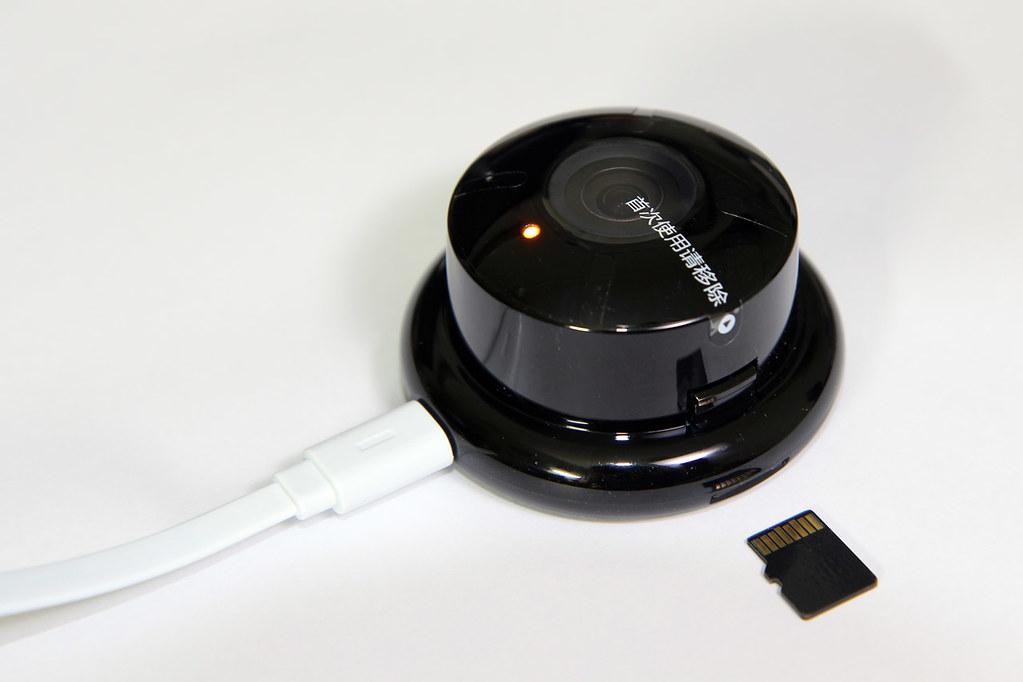
I recently decided to buy new toys to monitor my home — the Xiaoyi IP Camera (I bought more than one). The device itself is round, rather small (as pictured here) and fits into a plastic stand to prop it up. It accepts a microSD card for local recording, and it is only accessible via their iOS/Android app after pairing. The camera is only 720P and goes for 149 RMB (less than US$25).

Since these devices can see a live stream of my house at any time, I would prefer them to be completely within my control. This can be done either via an audit of the firmware or by replacing the firmware with your own (both options are equally tedious). After the “B” firmware version, they also removed RTSP streaming support. You could downgrade to the “B” version, but you won’t benefit from newer changes they have added since then. Let’s get to it.

You can find the firmware images of the Xiaoyi camera online, typically in a ZIP file. I have provided links to this at the end. Unpacking the ZIP file gives you a single file called home. Running the file command reveals that this is a U-Boot image with the file system image tacked on:

home: u-boot legacy uImage, 7518-hi3518-home, Linux/ARM, Filesystem Image (any type) (Not compressed), 7974512 bytes, Wed Jan 21 16:14:18 2015, Load Address: 0x00000000, Entry Point: 0x00000000, Header CRC: 0x2F0FAD85, Data CRC: 0x4B21D5F9

To get to the file system image, a StackExchange answer recommended using U-Boot’s mkimage and a bit of file manipulation to carve out the data. This made me almost want to write my own tool in Python but fortunately someone had already done this before. Use uImage.py from that site to extract the file system image from this home. The file system image is a JFFS2 image named 7518-hi3518-home, and our next mission is to mount it.

Continue reading

Magnetic Stripes & Stuff

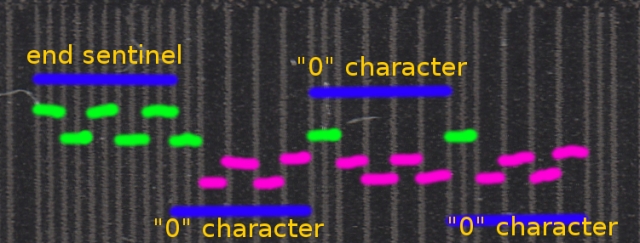
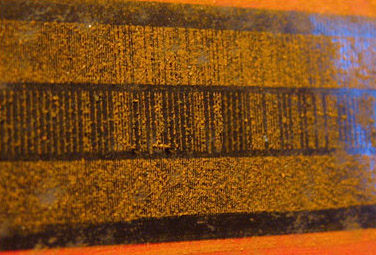
Apparently you can visually read magnetic stripes, if you can somehow see the magnetization patterns encoded on the stripe. I recently found out that this is indeed possible. The density is not that high and following methods will allow us to visualize the encoding.

You could use a “magnetic developer” solution and learn how each bit is encoded:

magstripe-encoding

Or you could use iron (oxide) filings:

magstripe-iron-filings

In this video linked from the Hackaday article, they also tried it on various magnetic media like cassette tape (yes who remembers those?) and floppy disks:

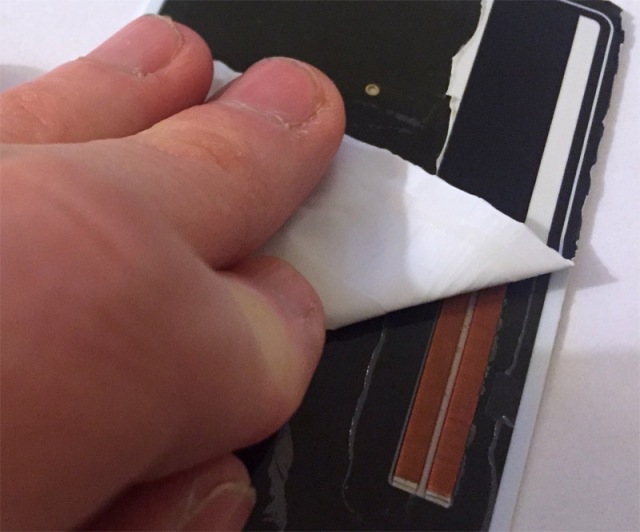
Also related, here’s a teardown of the Coin Card, an electronic card that can emulate a set of pre-programmed magstripe cards on-the-fly. There are more teardown photos where this came from:

coin-card

Continue reading

Patching ZIP Files

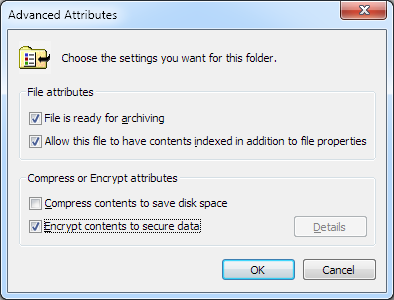
I have recently been working with VM images and to transport & distribute them conveniently I had to zip them up. I mainly work in a Windows environment and I use 7-Zip for packing and unpacking archives. It’s actually quite nice (and free), if you don’t mind the spartan interface. On my workstation, I have NTFS file encryption (EFS) enabled on my home directory. The way this works is that you can selectively encrypt files and folders by setting a special attribute on these items.

NTFS encryption attribute

I was in a hurry to prepare a VM image for a class and I used 7-Zip to archive the entire VM folder. The problem was, this encryption attribute was also recorded in the ZIP file and I only realized it when I unpacked it on a machine for testing right before the class started. On a machine that does not use NTFS, it warns the user and asks if it should continue extracting unencrypted. On a machine with NTFS, the destination files get encrypted and Windows starts nagging the user to back up the EFS keys. Compressing a 9 GB image into a 3 GB ZIP file took about 40 minutes, so there was really no time left to decrypt the files (EFS really sucks in this regard) and re-compress it into a ZIP file without encryption.

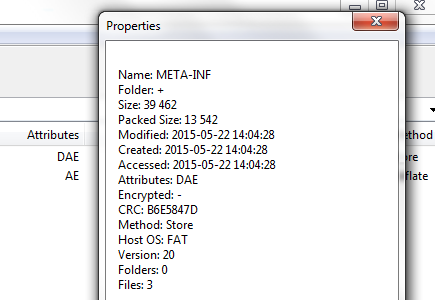
You can check whether a file is marked for encryption by checking the Attributes column in 7-Zip. (Note that this encryption attribute is native to NTFS and is different from ZIP file encryption.) The attribute string is somewhat cryptic but E means encrypted and A is archive. Interestingly, 7-Zip itself does not restore the encrypted attribute, but the native Windows unzipping functionality does.

ZIP attributes

Patch All The Things!

While I did not manage to solve this annoyance in time for the class, I had this idea to write a tool that would just patch the ZIP file. No changes need to be made to the file data and so there is actually no need to re-compress it.

Continue reading