GNU patch and Windows UAC

If you’re looking for the GNU patch on Windows, you would probably have found the GnuWin32 project. If you try to run this program on Windows Vista or 7, you will be prompted with the UAC dialog, asking you to run the program with administrative rights.

Windows Vista, when they introduced the User Access Control (UAC) feature, tried not to break existing programs by detecting which ones require administrative access. The usual suspects are installers that are probably named *setup.exe or *install.exe. For some reason they also thought they’d throw in *patch*.exe, which matches the patch.exe.

To fix this problem, I found a page at the OOMMF project at NIST, which talks about embedding a manifest file into the executable. Embedding it is actually not necessary, you just need to name it patch.exe.manifest and have it in the same directory as patch.exe.

The other alternative is to disable this system-wide “smart” detection behavior using a Security Policy: “User Account Control: Detect application installations and prompt for elevation“. If you do this, it means you will need to manually right-click older installer applications and select the “Run as administrator” option. Failing to do this means the installer will not be able to correctly write into directories like “Program Files” and alter system registry settings. Note that when I say “correctly write”, it’s because of the UAC virtualization, but that’s another story.

If you use MSYS (from the MingW project), it uses the patch.exe.manifest file technique, which is less intrusive than embedding it into the executable.

If you’re an application developer, you should read Windows Vista Application Development Requirements for User Account Control (UAC), which describes in detail the different options I have just talked about.

tl;dr

If you need just GNU patch, follow the OOMMF page to create the manifest file, but don’t bother embedding it. If you come from a UNIX background, just use MSYS to get all the other UNIX tools.

Importing SMSes into the iPhone

Since my iPhone 3GS died, I have been using my dad’s Samsung Jet as a temporary replacement phone. I really can’t stand the resistive touch screen – tapping backspace will at times hit the T9 button when I’m composing an SMS. Also, I miss the display of SMSes as a conversation with both sent and received messages in a single place.

I obsess over keeping chat history, so naturally I want to find a way to preserve these messages on the phone. I keep hitting the maximum limit of about 200 odd SMSes and I have to delete old messages. The first step would be to download the SMSes onto my PC, using the Samsung New PC Studio (NPS) software.

The Nokia PC Suite used to save the SMSes in some CSV-like format, so I wonder if the Samsung NPS does the same thing. Peering into the AppData directory, I found a couple of files and (empty) folders. I inspected the .dat files, and I found that they were of the type “Standard Jet DB”. To open them, I renamed them to .mdb and opened them in MS Access. One file had password protection, and the other did not. Using this other database, it seems that the sync-ed SMSes were stored in the MESSAGE table. Great!

So I began looking for a way to access this database. Since I’m using 64-bit Windows, I was having difficulty using the Windows Scripting Host (WSH) and the ActiveX objects, but JetSQLConsole worked fine. JetSQLConsole was written in C/C++ and it relied on QT, so recompiling it for my purposes is going to be a little bit troublesome. In its current state, it provides an SQL console to the database, but I would prefer programmatic access to the database, so eventually I settled for Python + pywin32 extensions.

iPhone SMS Database

The iPhone (or iOS, rather) uses an SQLite database to store the SMSes. In this database, there are a couple of tables, indices and triggers. The tables we are interested in is the message table, the msg_group table for grouping the SMSes into different conversations, and a mapping table called group_member.

Accessing this database will not be easy (or should I say convenient) if you do not jailbreak your iPhone. There are two methods for accessing this database:

  1. jailbreak the iPhone, then use something like iPhone Explorer to extract the SMS database
  2. sync to backup the iPhone, then locate this database in the backup to copy it

Since we are importing SMSes into the iPhone, the database will need to be copied back into the phone. If you choose to use method #2, you will need to perform a restore to get the updated database back into the phone.

Putting it Together

Armed with the knowledge of both databases and their schema, all that was left is to create a converter between the two. The typical use case would be:

  1. connect the Samsung Jet to download SMSes from the phone into NPS
  2. copy the iPhone SMS database (/var/mobile/Library/SMS/sms.db) to the script directory
  3. run the script to import the Samsung SMSes into the iPhone SMS database
  4. copy the updated iPhone SMS database back into the phone

Since I will be running it frequently, I did not want to have to worry about importing duplicate SMSes. I made the script check for duplicate SMSes using the SMS text, the timestamp and the number and direction (sent or received) it came from. With most older phones, sending a blank SMS was allowed; the script will ignore blank messages.

As I did not have iTunes on the Windows machine, I had to use my Mac, copy the database to the Mac, then to the PC, run the script, then copy it back to the Mac, and then onto the iPhone. To streamline this process, I decided to install iPhone Explorer and only the necessary dependencies, instead of everything that comes with iTunes. You will need only the AppleMobileDeviceSupport(64) and the AppleApplicationSupport packages.

The script uses the Python port of libphonenumber, which parses phone numbers. This is needed because my telco prefixes the country code even if the SMS is local, and obviously my address book doesn’t have those, so I needed a way to match these. The databases is filled with both versions of these numbers, depending on whether the SMS was outgoing or incoming, and sometimes the other party’s telco.

Download

I’ve made the script available on Bitbucket. You can use the “get source” link to grab a copy of it, or alternatively, by using Mercurial.

Update: I gotten my iPhone 4S since Nov 2011 and successfully managed to restore the SMS database from my iPhone 3GS backup.

The iPhone 3GS was running iOS 4.3.2. I ran my SMS import script every few days to update the iPhone’s SMS database, and I still connected my iPhone 3GS to iTunes to perform regular backups. When I got my new 4S, which was running iOS 5.0, I simply “restored” the latest backup to the new phone. All my SMS history (except those special cases I’ve mentioned) was on the new phone, as if I had been using an iPhone all the while.

As such, I will not be updating my script to work with iOS versions greater than 4.3.x. In iOS 5 the SQLite database schema would most probably have changed to accommodate iMessage. However, I would be happy to accept patches from someone who has implemented the functionality.
5 iOS Features I’d Love

WWDC 2011 kicked off yesterday with Steve Jobs taking the stage as usual. Sadly, there wasn’t a new iPhone announced (because I’m waiting to replace mine). Nevertheless, I’m still looking forward to iOS 5. Here’s some of the features I thought were great:

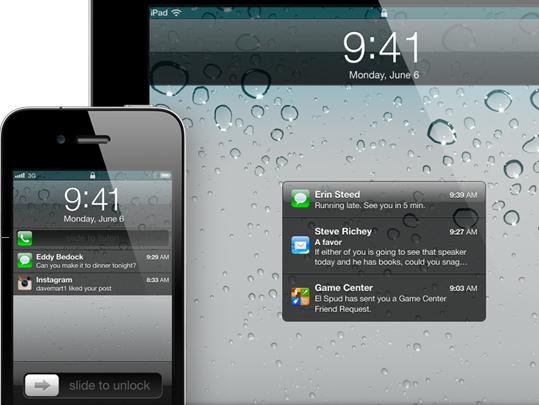
1. Notification Center

I think this has been on everyone’s wishlist for a really long time. If you have no time to respond to the missed calls or SMSes, notifications are now shown on the lock screen so you can see what you’ve missed at a glance.

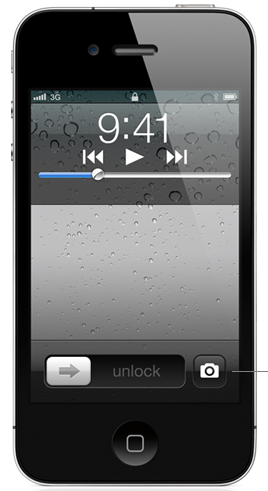
2. Camera Quick Access

I cannot stress how much I (am going to) love this feature! Because I’m paranoid, I have a complex password setup (which consists of numbers, letters and symbols) on my iPhone. By the time I unlock my phone, the moment is lost – it has happened so many times before. I hope the shortcut would still be available with a passcode set (and yet prevent unauthorized access to my photos).

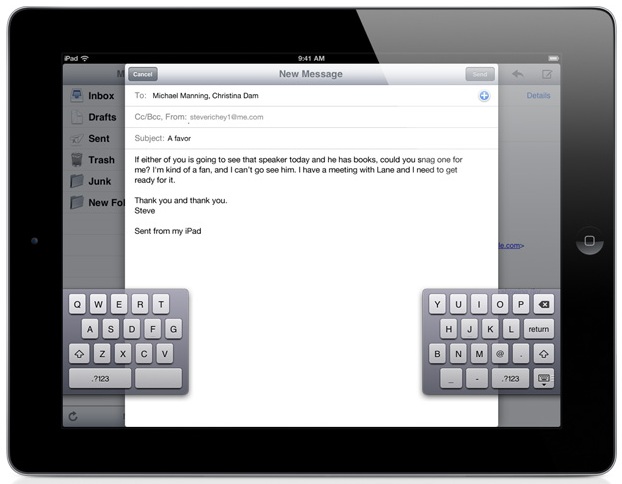
3. Split Keyboard (iPad)

It’s really difficult to type on the iPad while holding it with both hands. Split keyboard allows you to thumb-type, it seems. I’d have to try this for myself.

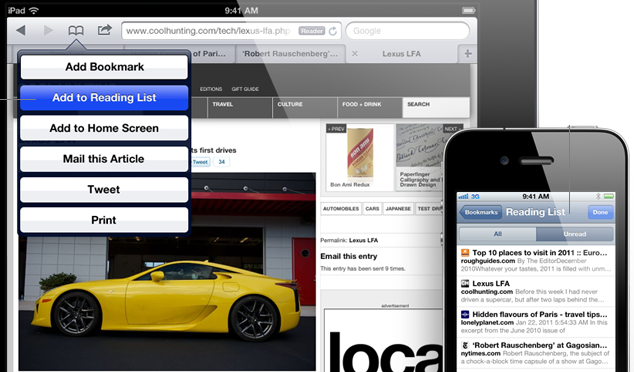
4. Safari Reading List

I have been using Read It Later and it’s been really good. I’m not sure if Safari’s Reading List can be saved for offline reading, but having a “Read Later” button there would be really handy. I use Read It Later via a bookmarklet and it always takes a while to load the Javascript file from their servers.

5. iMessage

I use SMS more than I call on my phone. Currently, WhatsApp fills this void for me, and it has been doing a great job so far. The problem is, it doesn’t allow you to use it on the iPad. Even if it did, my chat history would be all over the place. Let’s hope iMessage can do a better job.


[Images from apple.com]

Rescuing Data From a Nokia 7230

Recently I was passed a Nokia 7230, which committed suicide by taking a nosedive into the toilet bowl. I was asked to extract the phonebook data from it.

The convenient thing about (some) Nokia phones is that they provide haptic feedback when it powers up, so I know it turned on, but the display was blank. The keypad LED also lit up, but I had no visual indication of what was going on. My first thought was to extract the data using something like PC Suite, but I really didn’t want to install it because you had to install the Nokia drivers and stuff.

Upon connecting the phone via USB, it will prompt you to select a mode you would like to use, among which are “PC Suite” and “Mass Storage”. The mode we are interested in would be “PC Suite”. However, since the screen was not working, I had to manually guess what the options are, and which is selected by default. You can tell from the  type of USB interfaces that are exposed to the PC.

After pressing the buttons for a while, I had no luck getting it to switch away from Mass Storage mode.

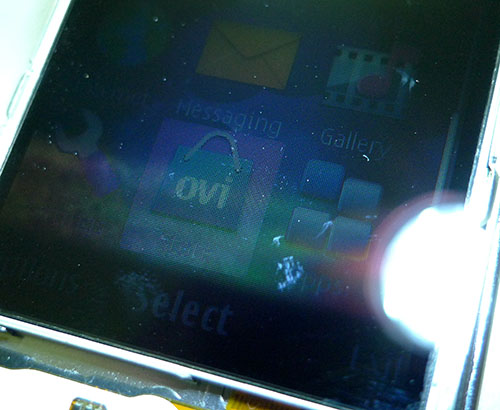
I suddenly had this thought – what if there was actually an image being displayed, but the backlight was not working? I took an LED torch and shone it on the LCD and presto, I could see the display. Here’s what it looks like:

After being able to see the display, I realized the phone automatically locked the keypad, which was why my keypresses were not getting through.

gnokii

gnokii is a CLI-based tool that enables you to communicate with your Nokia phone over a couple of protocols, one of which is USB. I had Fedora Core 14 installed in VirtualBox and managed to easily bridge the USB into the VM. Upon connecting the phone, the kernel module cdc_phonet will claim the USB device. You will need to unload the kernel module in order to allow gnokii to communicate with the phone.

The important settings are below:

model = series40
port = 1
connection = dku2libusb

However, it hanged upon trying to get the phone model. Since FC14 only had the version 0.6.28 RPM, I tried to download the latest version (0.6.30 at the time of writing) and compiled it myself. That didn’t work either.

Although I did have some experience in the FBUS protocol, I decided I was not going to get my hands dirty. Moving on.

Apple iSync

This is why I love using Apple products. With the OS, it bundles this very handy utility which doesn’t have a Windows equivalent. iSync talks the SyncML protocol to most Bluetooth-enabled phones to perform synchronization of your phone contacts and calendar data.

Since I can see the screen, I enabled Bluetooth and paired it with my Mac. However, iSync does not support this device. A little bit of Googling brought me to a SourceForge project called iSync-nokia-723. Simply download the ZIP file (again, I didn’t want to use the installer) and unzip the phoneplugin bundle into ~/Library/PhonePlugins.

Restart iSync and you’re in business.

Remember to create a new user account as you won’t want iSync adding the phone’s contacts to your own Address Book.

iPhone 3GS Baseband Issues

How can you tell when your iPhone baseband dies?

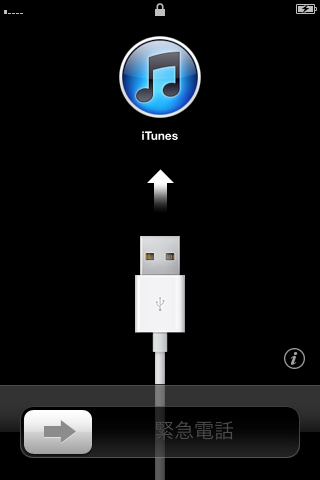
Take a look at the top-left corner where the network status is displayed. The SIM card was inserted, the SIM PIN was entered, but it remains unconnected to the network.

As you can see from the iTunes icon, this is a newer version of iOS (4.2.1). The older version sported a different iTunes icon and when you clicked the circled i, the IMEI is unknown. At least they “fixed” handling of baseband errors in the newer iOS version.

Trying to restore version 3.1.3 of the firmware will cause iTunes to abort with an error after the iPhone has rebooted. On the version 4 iOS, this does not happen.

Still, in this state, it is impossible to activate the phone, which means it can’t be used without the network. I have tried jailbreaking the phone but it results in an endless reboot loop. My next hope would be to try some carrier unlock software of some kind.

Update 10-Jun-2011: I’ve used PwnageTool to jailbreak my phone for the first time. PwnageTool will take the ipsw, make changes and ask you to put your phone into DFU mode. It will then upload the exploit, allowing you to use iTunes to upload the modified ipsw. Since iTunes is doing the uploading, it will verify the SHSH for that firmware version.

Remember to also check the “Activate baseband” option in PwnageTool. Since the baseband has died and is unable to connect to the network, the phone cannot be activate normally.

At this point,  my iPhone 3GS behaves like an expensive iPod Touch with a better camera, and I can connect using WiFi to use my apps, but the battery drain is quite bad.